The Chapter One logo appears in the upper left on a purple background. There’s a laptop showing the instruction app’s story view with an illustration and sentences from an early reading exercise.

Visuals / Chapter One

An app for 1:1 web-based reading support in classrooms

Chapter One provides reading programs for kindergarten through second grade students in schools across the United States, Canada, and the United Kingdom. We completely redesigned the app used in classrooms that focuses on increasing early reading proficiency, fluency, and comprehension.
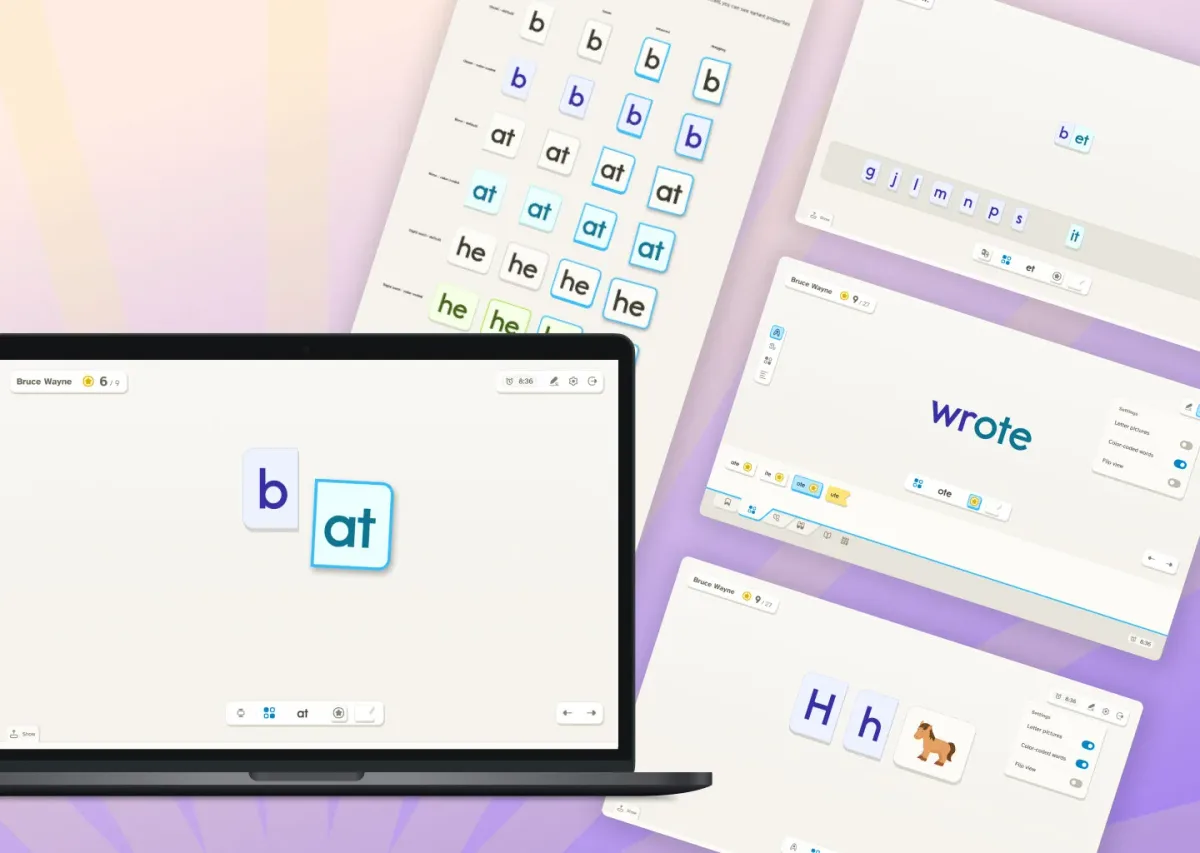
  • The word parts ‘b’ and ‘at’ appear as colorful blocks on a laptop screen showing Chapter One’s app. Behind the laptop are several other screen designs displayed as a grid across a purple background. They show word building activities, color-coded words, and an illustration of a horse paired with the letter ‘H.’

    Kid-friendly, engaging design

    During one-on-one sessions in a classroom, early language instructors guide students through Chapter One’s app to learn letters, sounds, and words. Even with the instructor controlling the app, the design needed to be engaging and interactive to keep a student’s attention on the screen.

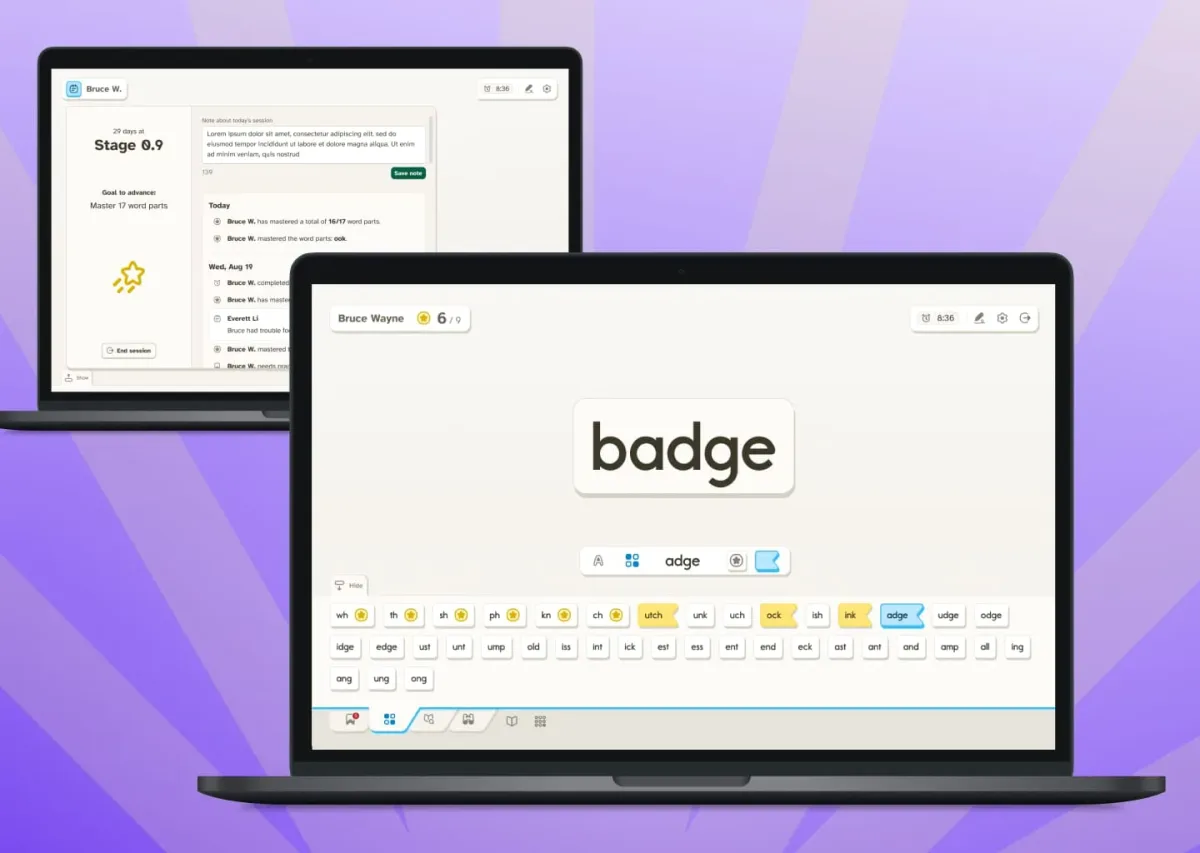
  • On the laptop screen in front, the Chapter One app shows the word ‘badge,’ with a drawer below that contains other words and word parts. The laptop screen in back has a dialog open showing the student’s reading level, an activity log, and an area where instructors can leave notes.

    Workflows tailored for learning

    Streamlined navigation matches the order of session activities, with content that changes as students progress through each level. A simplified interface keeps the focus on reading, but extra instruction tools and reinforcement activities are available when needed. With visuals that distinguish which content is mastered or needs practice, instructors can make the most of short sessions with readers. An activity log and notes area helps them pick up where they left off.
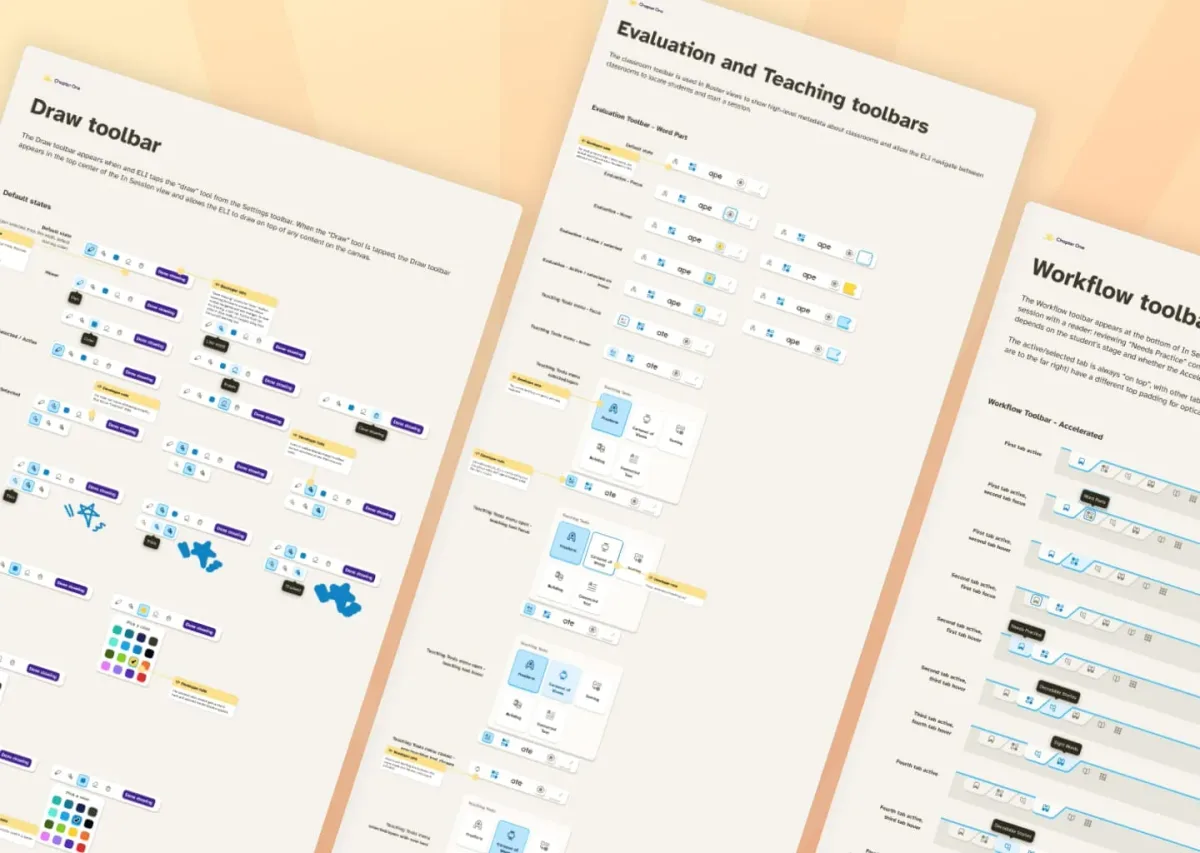
    Documentation showing all the interactive states of canvas-based toolbars like a draw toolbar with a color picker, menus for switching between modes, and a workflow navigation that mimics folder tabs.

    We drew design inspiration from school supplies—soft creamy tones like the pages of books, navigation like file folder tabs, and an elevation system of blocky shadows that mimic real-world objects and play.

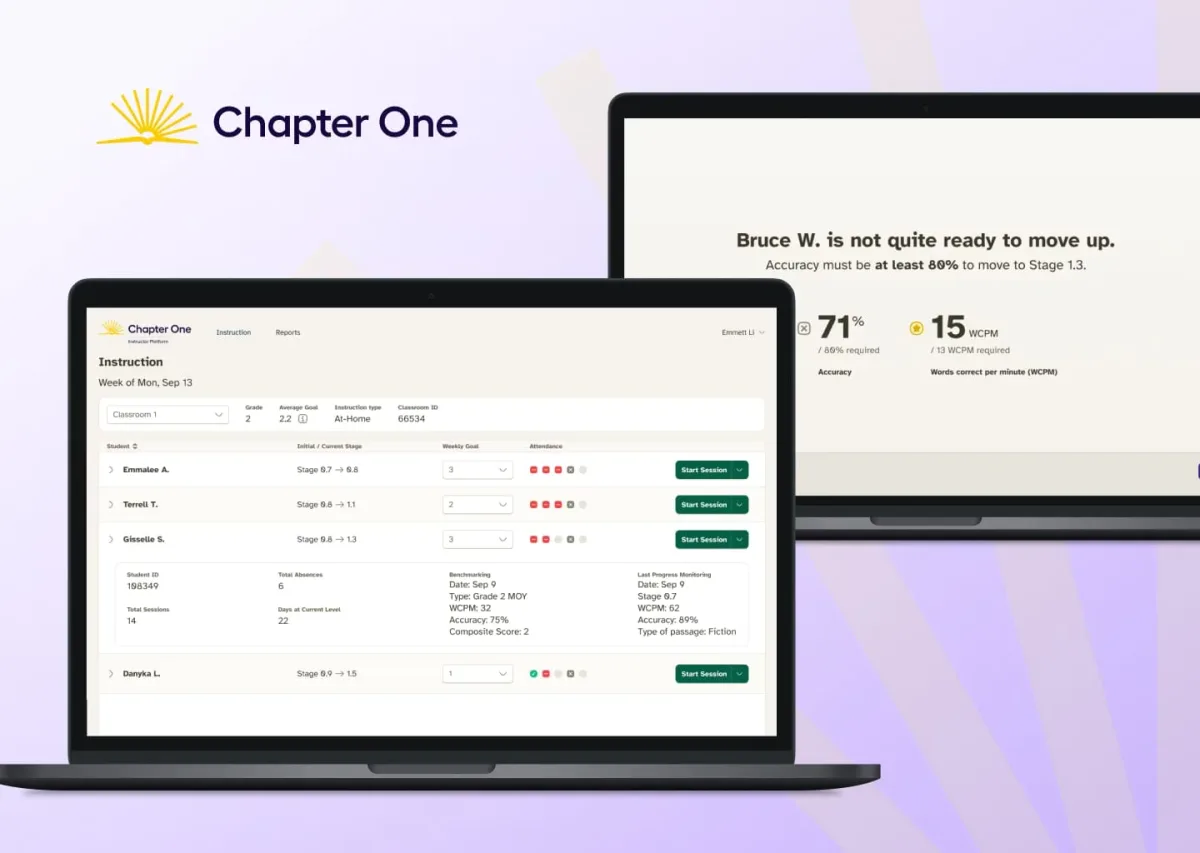
  • Two laptop screens. One shows a table of student data with a ‘Start session’ button in each row. The second laptop screen shows a student’s score after they’ve completed an assessment to determine whether they are ready to level up.

    Easy classroom management and clear assessment tools

    Instructors can rely on the app to take the guess work out of which students need sessions. Students are sorted by weekly goals, reading stage, and attendance. In-app assessments present clear results, with plain language to guide student progress.